Using Raspberry Pi with your laptop
1)PuTTY – https://the.earth.li/~sgtatham/putty/…
2)Xming – https://sourceforge.net/projects/xmin…
Install the above 2 sofwares
For using raspberry pi with laptop you need to have : 1)WiFi router 2)Ethernet cable 3)Raspberry pi with Raspbian installed in the sd card. Download 2 softwares mentioned above.Connect your raspberry pi to the lan port of wifi router through ethernet cable.Now run putty .Open Xming .You need to know raspberry pi ip address you get this from your wifi routers settings.(laptop and rpi should be connected to same wifi router) Enter the ip address .Select ssh and then x11 forwarding.Enter id :pi password:raspberry . type lxsession in putty. The raspberry gets connected to your laptop so you have avoided the need of external monitor,keyboard and mouse.
Note:
Before following above procedure make sure that ssh option is enabled on your raspberry pi. Sometimes ssh option is disabled by default. So for eabling it you need to connect to the (TV)screen or a monitor having hdmi port to rpi hdmi .Connect one mouse to raspberry pi usb .By powering the rpi u ll see the rpi display on the screen .
Click on Rpi logo further select >preferences>Raspberry pi Configuration>interfaces>ssh>enable it..

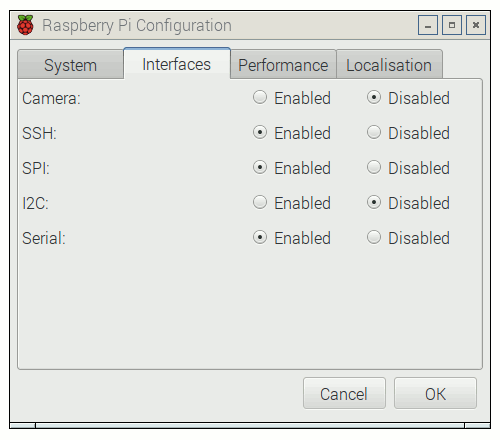
Then follow above process for using Raspberry pi with laptop. For Rpi 3 you can connect through wifi and can avoid the need for connecting it to wifi router through ethernet but wifi should be on by default.
Using Raspberry pi with laptop Download links:
1)PuTTY – https://the.earth.li/~sgtatham/putty/…
2)Xming – https://sourceforge.net/projects/xmin…
Install the above 2 sofwares
For using raspberry pi with laptop you need to have : 1)WiFi router 2)Ethernet cable 3)Raspberry pi with Raspbian installed in the sd card. Download 2 softwares mentioned above.Connect your raspberry pi to the lan port of wifi router through ethernet cable.Now run putty .Open Xming .You need to know raspberry pi ip address you get this from your wifi routers settings.(laptop and rpi should be connected to same wifi router) Enter the ip address .Select ssh and then x11 forwarding.Enter id :pi password:raspberry . type lxsession in putty. The raspberry gets connected to your laptop so you have avoided the need of external monitor,keyboard and mouse.
Note:
Before following above procedure make sure that ssh option is enabled on your raspberry pi. Sometimes ssh option is disabled by default. So for eabling it you need to connect to the (TV)screen or a monitor having hdmi port to rpi hdmi .Connect one mouse to raspberry pi usb .By powering the rpi u ll see the rpi display on the screen .
Click on Rpi logo further select >preferences>Raspberry pi Configuration>interfaces>ssh>enable it..
Then follow above process for using Raspberry pi with laptop. For Rpi 3 you can connect through wifi and can avoid the need for connecting it to wifi router through ethernet but wifi should be on by default.


Comments
Post a Comment